tiistai 29. lokakuuta 2019

AirPods Pro vs AirPods: What’s the Difference


Apple today announced the new AirPods Pro with active noise cancellation, a new design, and more. The AirPods Pro is targeted towards prosumers as its higher retail price would indicate. How does the AirPods Pro compare to Apple’s regular AirPods which was refreshed just earlier this year? Find out in this comparison.

The AirPods Pro differs from the regular AirPods in a number of ways as the former offers better sound quality, a superior new design, active noise cancellation, and more. They do share the same core — Apple’s H1 chip — and have similar battery life as well, but the AirPods Pro lives up to its pro name by offering more features.
AirPods Pro vs AirPods: What’s the Difference
New Water-Resistant Design

The AirPods Pro has a design that’s similar to the AirPods but with a number of improvements that make it easily distinguishable from the latter. Compared to the AirPods, the Pro has an in-ear design meaning it fits securely and snuggly in your ears. It also comes with three varying silicone ear tips for a better fit. Many AirPods users are not satisfied with its fit and the AirPods Pro looks to solve those issues.

Despite packing in so many hardware, each AirPods Pro unit weighs only 5.4gms — 1.4g more than what one AirPods unit.

The in-ear design of the AirPods Pro means that it passively also blocks out the noise which automatically makes it sound better than the existing AirPods.


A major advantage the AirPods Pro has over the AirPods is that it has an IPX4 rating making it sweat- and water-resistant. This is a big deal since the AirPods lack any kind of IP rating and are not sweat-resistant. This meant one could not wear them while working out or a trip in the shower was enough to kill the earphones for good. The IPX4 certification of the AirPods Pro means one can wear it while working out without any issues.

Another unique aspect of the AirPods Pro design is that it has air vents which helps equalize pressure. Apple says this will make the wearer feel as if they don’t have anything in their ears.
Better Sound Quality

Despite their popularity, the AirPods were never really known for their sound quality. They were all about the convenience they offered and less about sound quality. With the AirPods Pro though, Apple has also focused on sound quality.

The wireless earbuds feature a custom high-excursion speaker driver to deliver powerful bass. This is complemented by a high dynamic range amplifier that produces clear sound and an amplifier that powers the speaker driver and works in tandem with the H1 chip to control the sound.

There’s also Adaptive EQ that automatically adjusts the tunes of the music as per the shape of your ear.

All this is powered by Apple’s 10-core H1 chip. Apart from offering always-on ‘Hey Siri’ functionality, it also offers lower latency, superior sound quality, and more. It sits right at the core of the AirPods Pro and makes it better than the competition.

While the H1 chip is also found inside the AirPods, Apple only uses it there for offering always-on ‘Hey Siri,’ lower latency, and longer battery life.
Active Noise Cancellation

It is not just better sound quality but the AirPods Pro also offers active noise cancellation — one of the most requested features from regular AirPods owners. With active noise cancellation, the AirPods Pro will block out all ambient sounds so that you can listen to your music in peace. The new in-ear design of the AirPods Pro also means that it blocks out a lot of noise passively.

If you are an audiophile or someone who travels a lot, the active noise cancellation feature of the AirPods Pro is going to be a boon for you.


Without going into the details, Apple boasts about adjusting noise cancellation on the AirPods Pro at about 200 times per second. If anything, this shows just how seriously Apple took noise cancellation on the AirPods Pro.

To ensure you are better aware of your surroundings, Apple has also added a Transparency mode which will let the ambient sound in. This will be useful while you are walking on a street or have taken public transit.
Force Sensor

On the regular AirPods, one can switch between music tracks, answers/hang up on phone calls using various gestures, and more. The AirPods Pro features a force sensor at the bottom which is used to carry out these functions. You press the force sensor once to answer a phone and play/pause music. Double press it to skip a music track forward, three times to skip back, press and hold to switch between Active Noise Cancellation and Transparency mode, and more.
Battery Life

In terms of battery life, the AirPods and the AirPods Pro are almost on the same boat. Both of them offer up to five hours of listening time on a single charge. However, on the AirPods Pro, battery life does take a slight hit with active noise cancellation enabled. The listening time goes down to 4.5 hours while talk time is around 3.5 hours.

With the included charging case though, both AirPods and AirPods Pro can last for up to 24 hours.

The regular AirPods will provide an additional 3 hours of listening time after being charged for 15 minutes via the case while the AirPods Pro will offer 1 hour of additional listening time after 5 mins of charging.


One advantage the AirPods Pro offers is that the charging case has Qi wireless charging support. This means you can charge the case easily by simply putting it on a wireless charger which you are already using to charge your iPhone. While this is also possible with the regular AirPods, one will need to buy the $199 variant that ships with a wireless charging compatible charging case. The regular $159 version comes with a charging case sans wireless charging.

If you are already stretching your budget to buy the regular AirPods for $199, my recommendation would be to just extend it by another $50 and get the AirPods Pro.
Price

This is perhaps the reason why many people are curious as to how the AirPods Pro is different from the AirPods.

The regular AirPods start from $159 while the wireless charging case variant is priced at $199. The AirPods Pro retails for $249 which makes it almost $100 more expensive than the regular AirPods. For that additional $100 though, it offers a better design with water-resistance, superior sound quality, and active noise cancellation. Combined, these features have a massive impact on the overall user experience.Also Read:Awesome Screensavers for Windows 10

Also Read:Cool Down a Hot iPhone

There are plenty of other earphones that also cost around the same as the AirPods Pro and pack a similar feature set. However, none of them will work as seamlessly with an iPhone or a Mac as the AirPods Pro do. If you are a prosumer who is looking for the best wireless earbuds for their iPhone, the AirPods Pro are a no-brainer in my opinion. If you are on a budget though and don’t really care much about the sound quality, the regular AirPods will do just fine.


What are your thoughts on the AirPods Pro? Are you already looking to upgrade to it from your regular AirPods? Drop a comment and let us know about it!

torstai 17. lokakuuta 2019

Apple Releases macOS Catalina 10.15.1 Second Developer Beta


Apple has released macOS Catalina 10.15.1 second developer beta. As expected the second developer beta of macOS Catalina focusses on bug fixes and stability improvements. Last week, Apple had released the first macOS 10.15.1 Beta build. Typically public beta builds are released via the Apple Beta Software Program.

If you are already running macOS Catalina developer beta on your Mac, you will grab the latest beta by going to System Preferences -> Software Update. The macOS Catalina Public was launched earlier this month.
macOS Catalina Features
Screen Time


With Catalina, Apple is bringing Screen Time from iOS to macOS. It is the same app and offers the same functionality as its iOS version — keep tracking the amount of time you spend inside apps, the ability to set time limits on apps, and more.

Screen Time settings are synced across all devices so any limit you apply will be applicable for your usage across all Apple devices you own. Screen Time on macOS Catalina is gaining a useful new “One more minute” feature that will give users an extra minute when their time limit expires to save their work or game.
Improved Photos App

The Photos app is again getting a massive upgrade as a part of macOS Catalina. It now features a dynamic look that shows your photos and memories. It is now also smart enough to automatically hide duplicate photos, only surface interesting photos, and more. Other changes include the ability to browse photos by days, months, and years, with the app automatically highlighting important events like birthdays, trips, and more.
Standalone Music, TV, and Podcasts App


The addition of new Music, TV, and Podcasts app in macOS Catalina is one of the major highlights of the release. That’s because with these new apps, Apple is killing iTunes for Mac and these three apps are the ones that are going to replace it. All three apps have been built from the ground up and offer an experience that’s vastly superior to iTunes. Click here to check out all the new macOS Catalina features.Also Read:King Root and Its Best Alternative 2019

Also Read:Fix iPhone Keeps Disconnecting from WiFi After iOS Upgrade


maanantai 20. toukokuuta 2019

Apple Releases Second Developer Beta for iOS 12.4


Apple released the first developer betas of their next operating systems a few days ago, that being iOS 12.4, watchOS 5.3, tvOS 12.4 and macOS Mojave 10.14.6. As expected, it’s time for the second beta, but this time it’s only for iOS.

As usual, second developer betas are not recommended for daily use as they tend to be buggy and unstable. If you’re a consumer wanting to try out the latest and greatest from Apple, we recommend waiting for the first public betas or at least wait for later developer previews.

We expect the Cupertino company to focus on stability, bug fixes and minor tweaks in those updates, so don’t get your hopes up for things like Dark Mode or a new Volume HUD, something we expect in iOS 13. As iOS 12.4, watch OS 5.3, tvOS 12.4 and macOS Mojave 10.14.6 are all expected to be the last versions of Apple OSes before WWDC 2019, we expect Apple to save any relevant features for the expected major revamps of some of these pieces of software.

In case you want to install the iOS 12.4 beta (or any of the previous betas for the remaining platforms) on your device, we have a few resources that could help you do just that:


How to Download and Install macOS Mojave Public Beta on MacBook, MacBook Pro, and iMac


How to Install iOS 12 Public Beta on iPhone and iPad


How to Install watchOS 5 Beta on Your Apple Watch for Free Without Developer Account


How to install tvOS beta on your Apple TV 4

While these articles mention older versions of the OSes, they should still be relevant if you simply download the latest betas from Apple’s website.

Have you spotted anything interesting in the new betas? Let us know in the comments below.

Sponsor ads:

Gihosoft RePicvid Free Photo Recovery Software provides a free photo recovery software for windows to help users recover the deleted or lost photo for free.

If you lost data after you updated to a new iPhone, you can always use Gihosoft iPhone Data Recovery to get the data back from the old iPhone or backup.You may also like: iphonerecovery.com

If you use android phones, please choose Gihosoft Android Data Recovery.With Gihosoft Android Data Recovery, no longer afraid of data loss!
iPhone Manager:Get the ultimate Gihosoft iPhone Manager. Free download for PC/Mac.

tiistai 14. toukokuuta 2019

What’s the Differenceveiled the OnePlus 7 Pro and the OnePlus 7


OnePlus today unveiled the OnePlus 7 Pro and the OnePlus 7. With the ‘pro’ variant of the OnePlus 7, the company is finally launching a true flagship smartphone and taking on the likes of the iPhone XS series from Apple. So, how good is the OnePlus 7 Pro when compared to the iPhone XS and XS Max? Find out in this comparison.

The OnePlus 7 Pro is a major step up for OnePlus that has so far only released premium budget flagship smartphones. Now that the OnePlus 7 Pro is a true flagship phone, it will be interesting to see how it compares to the iPhone XS and iPhone XS Max. Is the OnePlus 7 Pro good enough to do justice to its price? Or buying the iPhone XS and XS Max makes more sense?
OnePlus 7 Pro vs iPhone XS vs iPhone XS Max Comparison
Design

From a design viewpoint, Apple pushed the boundary with the iPhone X in 2017. The almost bezel-less front helped the iPhone X standout from other Android phones in the market. The company has since carried the same design language forward with the iPhone XS and iPhone Xs Max.

The OnePlus 7 Pro builds on the design of the OnePlus 6T and completely does away with the dewdrop notch at the front. Instead, it features a pop-up selfie camera which means the front of the OnePlus 7 Pro is dominated by its Fluid AMOLED display.

All the three phones feature glass panels at the front and rear. The OnePlus 7 Pro has another design advantage thanks to its frosted glass panel at the rear and the striking colors it is available in. The iPhone XS and XS Max continue to be available in the same old boring colors and don’t offer anything new in this regard.


If you don’t like notches, the OnePlus 7 Pro is definitely going to win you over. The iPhone XS and iPhone XS Max do feel more premium in hand thanks to their stainless steel chassis but they won’t really stand out from the crowd as the OnePlus 7 Pro will. The iPhones do carry IP68 certification which the OnePlus 7 Pro lacks, though the company says the phone is water-resistant and that it does not want to waste money on getting an IP certification.
Chipset


OnePlus 7 Pro: Snapdragon 855


iPhone XS: A12 Bionic

The iPhone XS and iPhone XS Max feature Apple’s 7nm A12 Bionic chipset, while the OnePlus 7 Pro features Qualcomm’s 7nm Snapdragon 855 chipset. Despite being the first 7nm chip to the market, the A12 Bionic chip is an absolute beast. Its performance level is a generation or two ahead of what the Snapdragon 855 offers.

However, this does not mean that the Snapdragon 855 inside the OnePlus 7 Pro is a slow chip. It is among the fastest chip in the Android ecosystem and will comfortably run any heavy game or app you throw at it. The inclusion of speedy UFS 3.0 NAND on the OnePlus 7 Pro will also play an important role in this regard, though the iPhone’s NVME storage is still notably faster.
Camera


OnePlus 7 Pro: 48MP f/1.6 aperture with OIS, 16MP 117-degree ultra-wide angle sensor, 3x 8MP optical zoom


iPhone XS: 12MP f/1.8 aperture with OIS, 2x 12MP optical zoom

The primary camera of the iPhone XS and XS Max might just be a wee bit better than the OnePlus 7 Pro but it lacks the flexibility offered by the latter. The ultra-wide angle shooter on the OnePlus 7 Pro allows one to capture scenes with an entirely different perspective when compared to the iPhones.

The iPhones are also better at video recording. While the OnePlus 7 Pro is not bad, its video quality is a notch or two below the iPhones.


Storage and RAM


OnePlus 7 Pro: Up to 256GB UFS 3.0 Storage, 12GB RAM


iPhone XS and XS Max: Up to 512GB storage, 4GB RAM

The iPhone XS and iPhone XS Max ship with 4GB RAM, while the base variant of OnePlus 7 Pro ships with 6GB RAM. There are also variants with 8GB RAM and 12GB RAM available. The additional RAM means the OnePlus 7 Pro is an absolute beast when it comes to multitasking. While the multitasking performance of the iPhone XS and XS Max is not bad by any means, the OnePlus 7 Pro is in a different league altogether.

As for storage, the base variant of the iPhone XS and XS Max has 64GB storage while the OnePlus 7 Pro is available with 128GB storage. Despite costing a few hundred dollars more than the OnePlus 7 Pro, it is a shame that the iPhone XS series only ships with 64GB as base storage. The handsets are available with up to 512GB storage while the OnePlus 7 Pro tops out at 256GB.
Connectivity


OnePlus 7 Pro: 1.2Gbps LTE modem, VoLTE, Dual-SIM,Wi-Fi ac, Bluetooth 5.0, NFC


iPhone XS and XS Max: Gigabit LTE, VoLTE, Dual-SIM, Wi-Fi ac, Bluetooth 5.0, NFC

This is an area where Apple should have really set the benchmark but that’s not the case. While both phones support Gigabit LTE, the OnePlus 7 Pro has a faster LTE modem which means in the right scenario, you will get faster LTE speeds on it. That’s not all, this also means better network reception in challenging areas which is really important.

Other connectivity specs of both phones are the same: Wi-Fi ac, Bluetooth 5.0, NFC, dual-SIM connectivity, and VoLTE.
Battery


OnePlus 7 Pro: 4000mAh, 30W Wrap Charging


iPhone XS: 2658mAh, 5W charging, Qi wireless charging, 18W USB-PD fast charging support


iPhone XS Max: 3174mAh, 5W charging, Qi wireless charging, 18W USB-PD fast charging support

This is an area where the OnePlus 7 Pro beats the iPhone XS and iPhone XS easily. The OnePlus 7 Pro can easily last a day of heavy use thanks to its beefy 4,000mAh battery. The iPhone XS Max can also make it through a day of heavy use, while the iPhone XS might need a top up late in the evening.

The impressive aspect of the OnePlus 7 Pro is its 30W Wrap Charging. With the bundled 30W charger, the OnePlus 7 Pro can charge from 0-50 percent in just 30 minutes. In comparison, the iPhone XS and iPhone XS Max will take almost an hour to reach the same level. The OnePlus 7 Pro does lack wireless charging but the faster wired charging more than makes up for it.

The iPhone XS and iPhone XS Max can also charge from 0-50% in just 30 minutes but it requires one to buy an 18W USB-C charger and an expensive USB-C to Lightning cable along with it.
Pricing & Availability


OnePlus 7 Pro: Starts from $669


iPhone XS: Starts from $999


iPhone XS Max: Starts from $1,099

Despite a notable jump in its pricing when compared to the OnePlus 6T, the OnePlus 7 Pro is still notably cheaper than the iPhone XS and iPhone XS Max. For that extra money, the iPhone XS and XS Max do offer IP68 certification, a more premium build quality, and Face ID. Plus, the iPhone is available on all major U.S. networks while the OnePlus 7 Pro is only available on T-Mobile’s network in the US.

If one can get past the availability aspect of the OnePlus 7 Pro in the United States and if you don’t mind using an Android smartphone as your daily driver, there’s really very little reason to not buy the OnePlus 7 Pro over the iPhone XS or XS Max.


What are your thoughts on the OnePlus 7 Pro? Will you consider buying one over the iPhone XS or iPhone XS Max? Drop a comment and let us know!

Sponsor ads:

Gihosoft RePicvid Free Photo Recovery Software provides a free photo recovery software for windows to help users recover the deleted or lost photo for free.

If you lost data after you updated to a new iPhone, you can always use Gihosoft iPhone Data Recovery to get the data back from the old iPhone or backup.You may also like: iphonerecovery.com

If you use android phones, please choose Gihosoft Android Data Recovery.With Gihosoft Android Data Recovery, no longer afraid of data loss!

iPhone Manager:Get the ultimate Gihosoft iPhone Manager. Free download for PC/Mac.

How to Backup iPhone Photos to Avoid Further Data Loss?


How to Backup iPhone Photos to Avoid Further Data Loss?

You should be careful with your precious photos and have them backed up so that the next time you do not have to cry over "why all my photos disappeared from my iPhone?" Here's how you can do so:

Backup iPhone Photos in iCloud:

It is capable of storing up to 2GB of data and encrypts the backup data.

Step 1: Connect your device to a Wi-Fi network.

Step 2: Go to Settings -> [your name] and tap iCloud. If you are using iOS 10.2 or less, then go to Settings, scroll down and select iCloud.


Step 3: Tap iCloud Backup. Make sure iCloud backup is turned on.


Step 4: Tap Backup Now. Stay connected to your Wi-Fi until the process completes.

Backup iPhone Photos in iTunes:

It stores a backup on your PC depending on the available space. It also offers encrypted backups.

Step 1: launch iTunes on your PC and connect your device there.

Step 2: Select your iPhone model when it appears on your interface (if it is connected securely).

If you intend to save your Health and Activity data from your iOS device or Apple Watch, you must encrypt your backup: Select the box called Encrypt [device] backup and create a memorable password. If you don't need to save your Health and Activity data, you can make a backup that isn't encrypted. Just click Back Up Now.


Step 3: On the Summary screen in iTunes, you can see if the backup finished successfully. See the time and date under latest backup.

Note Tips: Top 3 Alternative Sites to TamilDbox 2019

Also Read:8 Best Chess Apps for iPhone & iPad 2019

Also Read:Recover Your Forgotten Apple ID and Password

Also Read:Top 5 Best Similar Sites to Kickass Torrents 2019

Also Read:10 Best Free Music Download Sites That Are Totally Legal

Also Read:12 Best Free Instagram Followers Apps for Android and iPhone in 2019

Also Read:How to Play Android Games and Run Android Apps on PC or Mac

Also Read:Top 5 Best Free File Encryption Software for Computer in 2019

Note Tips:Best 21 sites watch soccer live tv

Sponsor ads:

Gihosoft RePicvid Free Photo Recovery Software provides a free photo recovery software for windows to help users recover the deleted or lost photo for free.

If you lost data after you updated to a new iPhone, you can always use Gihosoft iPhone Data Recovery to get the data back from the old iPhone or backup.You may also like: iphonerecovery.com

If you use android phones, please choose Gihosoft Android Data Recovery.With Gihosoft Android Data Recovery, no longer afraid of data loss!

iPhone Manager:Get the ultimate Gihosoft iPhone Manager. Free download for PC/Mac.

keskiviikko 8. toukokuuta 2019

Google’s YouTube Music and Google Play Music Reach 15 Million Subscribers Combined


The race to 100 million paid subscribers was won by Spotify not too long ago. And while Apple Music is reportedly leading the charge in the U.S., the last reported total was 50 million paid subs for Apple’s service. But what about Google, which, technically, has two different streaming music services?

According to Bloomberg, Google has reached 15 million paid subscribers. And that’s including both YouTube Music and Google Play Music. To be fair, Google Play Music is going to be folded into YouTube Music in the (near?) future. At that point, Google should only have one primary streaming music service to take on Spotify, Apple Music, and Pandora.

One other note: The 15 million across both services also includes listeners that are on promotional accounts. So that number could see some shifting as those promotional offers fade out.Note Tips:Best 21 sites watch soccer live tv


“The figure includes subscribers to two services — YouTube Music and Google Play Music, an older service that is being folded into YouTube Music — said the people, who asked not to be identified because the information isn’t public. The number also includes some customers who are still on promotional trials.”

While Google did not officially comment on the numbers themselves, the company did provide a bit of context. According to the company, subscriptions to YouTube Music “and Premium” jumped up a whopping 60 percent between March of 2018 and March 2019.

YouTube Music may be earning subscribers on a regular basis, but there does not seem to be an indication it’s actually catching up to the main rivals out there. Apple Music has been growing at a ridiculous rate sings its initial debut. And Spotify continues to dominate the market in terms of subscribers. Still, options are good, so hopefully YouTube Music doesn’t disappear anytime soon.

[via Bloomberg]

maanantai 22. huhtikuuta 2019

What to Do If You Forget 4-digit Passcode on Your iPhone


What to Do If You Forget 4-digit Passcode on Your iPhone

You should know that, there’s no way to recover iPhone screen passcode directly so far. The only way to unlock your iPhone when you forget the 4-digit passcode is to remove the screen passcode completely. However, please note that, when you remove the passcode, all the data on your iPhone will be deleted as well.

Fortunately, if you have synced your iPhone with iTunes before, you still have a chance to back up your iPhone data before you remove the passcode. You can try it by connecting your iPhone to iTunes. If iTunes doesn’t request for the passcode, you can use the “Back Up Now” function.


Sponsor ads:
Gihosoft RePicvid Free Photo Recovery Software provides a free photo recovery software for windows to help users recover the deleted or lost photo for free.
If you lost data after you updated to a new iPhone, you can always use Gihosoft iPhone Data Recovery to get the data back from the old iPhone or backup.You may also like: iphonerecovery.com

keskiviikko 17. huhtikuuta 2019

Qualcomm CEO Steve Mollenkopf Shares Thoughts on Apple Deal but Declines to Give Specific Details


Following yesterday's surprise announcement of a settlement between Qualcomm and Apple, Qualcomm CEO Steve Mollenkopf sat down with CNBC to share a few more details about the new agreement between the two companies.


According to Mollenkopf, after "a lot of talking" both between teams and with Apple CEO Tim Cook, Apple and Qualcomm came to an agreement that "both companies like." Qualcomm and Apple are now focusing on getting new products out, such as the 5G iPhone coming in 2020 that Qualcomm will supply chips for.


And really, if you look at the focus of that energy now, it's very much on, 'Let's get these products out.' You know, it really clears the way for, I think, a much more natural relationship between the two companies. One that we certainly enjoy working on products together. And that's what we're doing now.

Apple and Qualcomm have established a "very broad deal" across all of Qualcomm's technologies, which Mollenkopf says is the first direct license that Qualcomm has had with Apple rather than contract manufacturers.


Each side "found something that was useful" in the deal, and according to Mollenkopf, Apple and Qualcomm "want to work together on products," as evidenced by the multiyear product deal the two signed as part of the settlement.


Part of the agreement between the two companies included a payment from Apple to Qualcomm, but Mollenkopf declined to provide further details on the size of the payment. He also refused to reveal how much Apple is paying Qualcomm per phone.


On the topic of 5G chips for future iPhones, Mollenkopf said that Qualcomm is "excited" and has the "entire team" working to support Apple. Unsurprisingly, no details were given on Apple's product plans or launch timelines for 5G connectivity.


While Apple settled with Qualcomm, Qualcomm continues to face an FTC inquiry into anticompetitive business tactics, which Mollenkopf says is still a risk to Qualcomm. He doesn't believe the Apple decision will impact what the FTC decides.

I don't think so. I think when we look at this deal, we're just happy to be able to do it. The environment with which we were able to put the deal together is obviously right in the middle of a trial. But, you know, the court is going to make its decision.

Mollenkopf's full interview, which includes additional details about Qualcomm's relationship with Apple and Qualcomm's goals moving forward, can be watched onCNBC's website.Sponsor ads:

Gihosoft Free iPhone Data Recovery:https://www.gihosoft.com/iphone-data-recovery-free.html

Gihosoft iPhone Data Recovery Free

Free iPhone Data Recovery Software for Windows/Mac

Recover up to 12+ types of files, including contacts, SMS, photos, WhatsApp, Viber, notes, etc.

Restore lost data from iOS devices directly or from iTunes and iCloud backup

Recover iPhone data lost due to iOS upgrade/jailbreak, accidental deletion, device lost or broken

Support all the latest iPhone, iPad and iPod Touch

Both Free and Pro version.

keskiviikko 3. huhtikuuta 2019

Japan Display to Supply OLED Screens for Apple Watch Series 5


Japan Display will supply the OLED screens for this year's new Apple Watch model, according to a new Reuters report out today.

Japan Display Inc will begin to supply organic light-emitting diode (OLED) screens for the Apple Watch later this year, two sources said, a breakthrough for the cash-strapped company whose late shift to OLED has cost it orders from Apple.


The supply deal would mark Japan Display’s foray into the OLED display market, the two sources familiar with the matter said, declining to be identified because they are not authorized to speak to the media.

The development comes as particularly good news for the liquid crystal display panel supplier, which relied on Apple for more than half of its revenue in the year ended March 2018, and whose mainstay LCD business has been hit heavily by Apple's recent shift away from LCD.


There have been reports of less-than-stellar sales of iPhone XR, which uses LCD. It's also rumored that Apple could drop LCD displays for its 2020 iPhones in favor of an all-OLED line-up. As a result, Japan Display has been seeking investor help that will put it on firmer ground before the switch takes place.


Reuters reported on Monday that Japan Display aims to raise as much as $990 million in new financing as early as this week.


Apple has been working to bolster its OLED display supply chain cut down its reliance on Samsung, which supplies displays for the iPhone X, iPhone XS, and iPhone XS Max. It has reportedly pushed LG Display to build out its OLED display production facilities, and has even purchased equipment to build an OLED panel research and development site in Taiwan.


Today's report offers little clue as to what the switch to Japan Display OLED screens could mean for the next Apple Watch, save for a note that newer OLED technology is generally thinner and allows more flexibility than LCD screens. For the Apple Watch Series 4, Apple upgraded the display panel to a larger LTPO (Low Temperature Polycrystalline Oxide) OLED Retina Display, which means it is more efficient and consumes less power for better battery life.


According to reliable Apple analyst Ming-Chi Kuo, the Apple Watch Series 5, coming in September 2019, will feature a new ceramic casing design, suggesting a possible return of the Apple Watch Edition.


Other rumors suggest a future version of the Apple Watch will adopt solid state buttonsthat don't physically click but instead provide haptic feedback to users when the buttons are touched. Apple introduced haptic feedback for the Digital C Sponsor ads:

Gihosoft Free iPhone Data Recovery:https://www.gihosoft.com/iphone-data-recovery-free.html

Gihosoft iPhone Data Recovery Free

Free iPhone Data Recovery Software for Windows/Mac

Recover up to 12+ types of files, including contacts, SMS, photos, WhatsApp, Viber, notes, etc.

Restore lost data from iOS devices directly or from iTunes and iCloud backup

Recover iPhone data lost due to iOS upgrade/jailbreak, accidental deletion, device lost or broken

Support all the latest iPhone, iPad and iPod Touch

Both Free and Pro version.

If you lost data after you updated to a new iPhone, you can always use Gihosoft iPhone Data Recovery to get the data back from the old iPhone or backup.You may also like: iphonerecovery.com

If you use android phones, please choose Gihosoft Android Data Recovery.

With Gihosoft Android Data Recovery, no longer afraid of data loss!

Must read:Youtube video downloader for pc

Gihosoft RePicvid Free Photo Recovery Software provides a free photo recovery software for windows to help users recover the deleted or lost photo for free.

Jihosoft Android Data Recovery: the best Android Data Recovery software for Windows and Mac to recover deleted contacts, messages, photos, videos, WhatsApp and etc from Android devices.Tips:How to transfer messages from iPhone to iPhone

Jihosoft File Recovery:Recover deleted, Lost, formatted, or corrupted files from PC, flash drive and memory card easily & safely

Also Read:Update Android

Also Read:Top 8 Best Alternative Websites to TamilGun in 2019

Also Read:Free Download FRP Bypass APK for Android 2019

Also Read:Best 10 Movie4k Alternative Websites for Movie Streaming 2019

Also Read:Top 32 Best Proxy and Mirror Sites to Unblock Fmovies 2019

Also Read:Best Torrent Search Engine Sites to Find Your Favorite Torrents 2019

Also Read:5 Best Sites Serving as Alternatives to TheWatchSeries Online 2019

keskiviikko 27. maaliskuuta 2019

2019 A Beginner’s Guide to Jailbreak – Everything you need to know


Q. CAN I PIRATE TWEAKS AND APPS?

A. Unfortunately, some people associate jailbreaking with piracy, which couldn’t be further from the truth. You can legally purchase jailbreak tweaks from Cydia, just like any other App Store app.

There are, however, certain websites and stores that distribute pirated apps, games, and tweaks.
Q. CAN I JAILBREAK MY IOS VERSION?

A. Yes, you can jailbreak almost all versions up till iOS 12.1.2. You can download the iOS 12 jailbreak from this link.


For the sake of this guide, we assume you are on a semi-untethered jailbreak, which is anything higher than iOS 9.3.4 (and 9.2.x and 9.3.x for 64-bit devices).
Q. WILL JAILBREAKING SLOW DOWN MY APPLE DEVICE?

A. Jailbreak per se does not slow your device down. However, some tweaks may drain the battery or slow your phone.

Typically asking others about tweaks before installing them is not a bad idea.
Q. CAN IT VOID MY IPHONE’S WARRANTY?

A. If you remove your jailbreak before entering the store, Apple cannot refuse you service and your warranty is still valid.

Some people also have had success on a semi-untethered by just hiding all of their jailbreak apps in the second page of a folder and then rebooting their iPhone or iPad.
Q. WHAT IS A SEMI-UNTETHERED JAILBREAK?

A. There are three types of jailbreaks –


Untethered – When you reboot your phone, your tweaks and themes stay enabled.


Semi-untethered – When you reboot your phone, your device boots to the stock iOS operating system until you open the jailbreak app and press the “jailbreak” button.


Tethered – Your phone does not boot unless you plug it into your computer and jailbreak it.

Tethered and fully untethered are so rare nowadays that knowing everything about them is pretty useless.

The last fully untethered jailbreak was on iOS 9.3.4, and the last tethered jailbreak was on iOS 5.1 firmware.
Q. HOW DO I GET THIS JAILBREAK APP ON MY IPHONE, IPAD OR IPOD TOUCH?

A. You can install the jailbreak app using a tool called Cydia Impactor, which is the standard tool for sideloading apps and games on your device.

There are plenty of other unofficial tools as well. However, we don’t recommend using them as they might steal your Apple ID credentials.


All apps signed with a free certificate will remain signed for a week whereas the ones signed with a developer certificate will stay signed for 365 days.
Q. SO I HAVE TO REPLUG INTO MY COMPUTER AND RE-SIGN THE APP ONCE A WEEK?

A. No. A tweak called Reprovision allows you to automatically re-sign the jailbreak app on-device every few days. You must install it from a third-party Cydia repository.
CYDIA
Q. WHAT IS CYDIA?

A. Cydia is the original package manager for jailbroken Apple devices. It’s basically the App Store for tweaks and themes.

Sileo, an alternative package manager by Coolstar, is growing popularity for its modern interface. Nonetheless, Cydia is still on top right now and continues to enjoy a cult following of dedicated fans.

The creator of Cydia, Jay Freeman aka Saurik, also created the Cydia Substrate.
Q. HOW DO I INSTALL CYDIA TWEAKS AND THEMES?

A. Enter Cydia and search for the tweak you wish to install. For themes to work, you must have both Anemone (or SnowBoard) and RocketBootstrap installed on your iPhone, iPad, or iPod.
Q. WHAT IS SUBSTRATE?

A. Substrate is an API (Application Programming Interface) required for tweaks to run.

You can use all types of tweaks, paid or free so long as they are compatible, on iOS 12 and below.
Q. ARE CYDIA TWEAKS PAID?

A. Yes, most of them are but there are plenty of free ones too.

Cydia tweaks aren’t easy to develop, so many tweaks cost money. Unfortunately, most uniformity is gone from purchasing tweaks, so it varies from tweak to tweak.
Q. WHAT IS A THIRD-PARTY REPOSITORY?

A. Cydia comes with default repositories like BigBoss that have tens of thousands of tweaks.

Private repositories, on the other hand, contain relatively fewer tweaks and are often managed by developers themselves. You can add these in the “Sources” tab of Cydia by clicking “Edit” and then “Add”.
TROUBLESHOOTING
Q. CAN I BRICK MY DEVICE?

A. Not on a semi-untethered jailbreak. If for some reason you do end up bricking your device, you can always restore to the latest iOS through iTunes.

The worst case scenario is a boot loop and even that is easily fixable in most cases.
Q. WHAT IS A RESPRING LOOP AND BOOT LOOP?

A. I will try to explain loops as best as I can right now –


Respring loop – Either you get a pinwheel indefinitely or a black screen on your device’s display. You can easily fix this by hard resetting your device.


Boot loop – It results in an infinite apple logo, which means your device is trying to boot but it can’t. It’s quite hard to boot loop on a semi-untethered jailbreak. So, you should always try hard resetting your device before trying other fixes.
Q. WHAT IS A HARD RESET?

A. A hard reset is a button combination that powers your phone down no matter what.


On an iPhone 6s and lower, hold home and power buttons at the same time for at least 10 seconds to hard reset.


On an iPhone 7 or 7+, hold the volume down button and power button for a few seconds to hard reset.
Q. SO I’M OUT OF MY RESPRING LOOP, HOW DO I UNINSTALL THE BROKEN TWEAK I INSTALLED OR REVERT THE CHANGES CAUSED BY WHATEVER SENT ME INTO A RESPRING LOOP?

A. Every jailbreak since iOS 11 has come with a “tweaks” toggle in the app. Switch it off and open Cydia to delete the broken tweak.


On other jailbreaks, you can try holding the volume up button whilst jailbreaking or volume up and power at the same time while jailbreaking.
Q. I CAN’T GET THE NEW JAILBREAK TO RUN ON MY DEVICE, CAN YOU HELP?

A. Keep trying. Lots of jailbreaks use exploits with low success rates.

Most of the newer tools, however, shouldn’t take more than 5-6 tries.
SHSH BLOBS, FUTURERESTORE, AND SIGNING
Q. WHAT DOES SIGNING MEAN?

A. There are two important types of “signing” –


App signing


Firmware signing

These terms are not the same and should not be confused with each other.
FIRMWARE SIGNING

When a firmware or iOS version is signed, you can upgrade or downgrade to it freely through iTunes, and save SHSH Blobs.

If an iOS version is signed, it isn’t necessarily the latest version. Often versions stay signed for a few weeks after a newer version gets released.


You only can use the OTA update function if you are going to the latest version. You can check signing status for iOS versions uses TSS Checker on macOS as well as Windows.
APP SIGNING

When an app is signed, you can open it.


Apple developer accounts allow you to keep an app signed for a full year whereas a free account only gives you a week. When the week/year ends, the app crashes and does not run.
Q. WHAT ARE SHSH BLOBS, BOOT NONCE, SEP, AND FUTURERESTORE?

A. To be clear, none of these are necessary to jailbreak. They are for manipulating your iOS version to go either to a newer iOS or the same iOS but with a clean filesystem.

Getting past that, here is my best attempt at explaining these.
SHSH2 BLOBS

SHSH Blob is a file unique to your device which allows updating via FutureRestore at a later date.


To save these, for now, follow this tutorial. If you need to find if you are a global or GSM phone, go to Settings > General > Regulatory and copy and paste your model number here.
NONCE

You use SHSH Blobs through FutureRestore, but to start FutureRestore you need to set your “nonce”. To do this, you need a jailbreak or root access. Without root access, you can’t use FutureRestore.


SEP

To successfully complete a FutureRestore, a signed iOS version must have SEP that is compatible with the version you are restoring. Otherwise, the process fails.

For example, iOS 11.4 SEP is compatible with iOS 11.3 and higher, but not iOS 11.2.6. So, right now, you can FutureRestore to iOS 11.3 but not iOS 11.2.6.
COMMUNITY
Q. WHO DEVELOPS THE JAILBREAK TOOLS?

A. Back in the day, teams of security researchers and hackers were formed to break Apple’s protection mechanisms.

Some notable teams include Team Pangu, the Evad3rs, the original iPhone Dev Team, and Chronic Dev Team.

Beginning with iOS 10, jailbreak teams are no longer as active as they used to be. Currently, most of the exploits out there are developed by Google Project Zero and other hackers.


Developers like Pwn20wnd and Coolstar pick up these iOS exploits and vulnerabilities and use them to develop full-blown jailbreak tools.
Q. HOW ACTIVE IS THE COMMUNITY?

A. Conceptualized in 2008, iOS jailbreaking continues to enjoy huge popularity across the iPhone user base.

As of now, there are hundreds of thousands of jailbroken iPhones, iPads, and iPods running the latest firmware versions.
Q. WHAT’S THE BEST WAY TO STAY UPDATED ON JAILBREAK-RELATED LATEST NEWS AND ANNOUNCEMENTS?

A. Bookmark our website and also follow us on Twitter and Facebook for latest updates and developments.

We have a thriving social community comprising over 25,000 enthusiastic followers.
Q. WHERE CAN I DISCUSS OR TALK TO OTHERS ABOUT JAILBREAKING?

A. You can talk about jailbreaking and iOS in our comments section, which is accessible at the end of each article.

Also, I recommend joining the official discord server of the jailbreak community if you want to chat with like-minded fellows.

Also Read:jihosoft Free iPhone Data Recovery

Sponsor ads:

Gihosoft Free iPhone Data Recovery:https://www.gihosoft.com/iphone-data-recovery-free.html

Gihosoft iPhone Data Recovery Free

Free iPhone Data Recovery Software for Windows/Mac

Recover up to 12+ types of files, including contacts, SMS, photos, WhatsApp, Viber, notes, etc.

Restore lost data from iOS devices directly or from iTunes and iCloud backup

Recover iPhone data lost due to iOS upgrade/jailbreak, accidental deletion, device lost or broken

Support all the latest iPhone, iPad and iPod Touch

Both Free and Pro version.

If you lost data after you updated to a new iPhone, you can always use Gihosoft iPhone Data Recovery to get the data back from the old iPhone or backup.You may also like: iphonerecovery.com
Also Read:Update Android


Also Read:Top 8 Best Alternative Websites to TamilGun in 2019

torstai 28. helmikuuta 2019

How to Fix iTunes Error 3014 When Updating/Restoring iPhone


An Apple user posted the above complaint on Apple’s official customer care website. But many of us may not understand what iTunes error 3014 stand for or why iTunes is encountering an error while updating/restoring their iOS.
What is iTunes Error 3014?
iTunes error 3014 is one of the restore/update error codes when iTunes cannot access Apple’s iOS software update server. You may keep getting this error on your iTunes if you don’t get to know what is causing the error message.
Sponsor ads:ISO Mounter Free Software for Creating Virtual CD DriveAlso Read:Download the Latest Version of Samsung Kies for PC and Mac OS
Here are some iTunes or iPhone issues that can cause iTunes error 3014:

Incomplete iTunes installations or corrupted/outdated versions of iTunes.

Virus or malware infection on the computer where iTunes is installed.

Corrupt iTunes related components in the Windows registry.

Other programs overwriting iTunes or stopping it from working properly.

Wrong computer date and time.


2 Update iTunes

Updating your iTunes software is a good way to get rid of iTunes error 3014. This was found out from many iTunes users’ testimonials as regards to solving this issue.


On Mac: Launch iTunes and click on the following tabs “iTunes > Check for Updates”. Then install the latest version of iTunes by following the onscreen guide.


On Windows: Launch iTunes and click on the following tabs “Help > Check for Updates”. Then install the latest version of iTunes by following the onscreen guide.


3 Adjust the Date and Time Settings on PC

iTunes Error 3014 may arise due to wrong Date and Time settings on your PC. Wrong date and time settings on your PC would lead to confusion zone confusion while communicating with Apple servers. The best way to avoid this error in such as case is to check your date and time.

Step 1: Open Settings menu on your PC. Choose Date & time.

Step 2: On the right panel, switch “Set time automatically” and “Set time zone automatically” off and switch them on again.


4 Check Your Security Software

Your Windows firewall may be the reason why iTunes is not working properly as it should. So, just turn it off before updating/restoring your iPhone, then turn it on to protect your computer from malicious threats.

Step 1: Open “Control Panel” and click on “System & Security > Windows Defender Firewall”.

Step 2: Turn Windows Defender Firewall off. You can now update your iPhone via iTunes, then turn Windows Firewall on later.


5 Check and Edit the Hosts Files

Editing the host files should be your last resort when fixing iTunes error 3014.

Step 1: Launch Notepad and click File.

Step 2: Open and navigate to this file location: C:\WINDOWS\System32\drivers\etc and open “hosts” file.

Note: Make sure you have changed the view options to All Files from the drop-down arrow on the bottom right of the dialogue box.


Step 3: When you see the hosts file, paste this line at the end: 74.208.10.249 gs.apple.com and save it.


Step 4: From your browser, open https://support.apple.com/en-us/HT201442. If you have done this step correctly then it will lead to Cydia website.

Step 5: Remove the following lines in your host's file:

74.208.10.249 gs.apple.com

127.0.0.1 gs.apple.com

Step 6: After removing these lines, save the hosts file. Then open your browser and go to https://support.apple.com/en-us/HT201442. It should direct you to Apple’s website.

If you have done the steps successfully, you would be able to restore/update your iPhone now.
6 Use Alternative Way to Avoid Any iTunes Restore Error

Sponsor ads:

Gihosoft Free iPhone Data Recovery:https://www.gihosoft.com/iphone-data-recovery-free.html

Gihosoft iPhone Data Recovery Free

Free iPhone Data Recovery Software for Windows/Mac

Recover up to 12+ types of files, including contacts, SMS, photos, WhatsApp, Viber, notes, etc.

Restore lost data from iOS devices directly or from iTunes and iCloud backup

Recover iPhone data lost due to iOS upgrade/jailbreak, accidental deletion, device lost or broken jihosoft Free iPhone Data Recovery

Support all the latest iPhone, iPad and iPod Touch

Both Free and Pro version.

If you lost data after you updated to a new iPhone, you can always use Gihosoft iPhone Data Recovery to get the data back from the old iPhone or backup.You may also like: iphonerecovery.com

If you use android phones, please choose Gihosoft Android Data Recovery.

With Gihosoft Android Data Recovery, no longer afraid of data loss!

Must read:Youtube video downloader for pc

Gihosoft RePicvid Free Photo Recovery Software provides a free photo recovery software for windows to help users recover the deleted or lost photo for free.

Jihosoft Android Data Recovery: the best Android Data Recovery software for Windows and Mac to recover deleted contacts, messages, photos, videos, WhatsApp and etc from Android devices.Tips:How to transfer messages from iPhone to iPhone


keskiviikko 27. helmikuuta 2019

Fix iCloud Drive Not Syncing On Mac/PC


“iCloud drive work perfectly on iOS device (iPhone and iPad). Problem is on my Mac, it won’t sync on Mac. What am I doing wrong or am I attempting to use it in a way it wasn't intended for?”

iCloud drive enables users to save the files of all the devices. If your iCloud drive is not syncing with the Mac, you need to know how to fix these issues. With the iCloud drive syncing thoroughly, it gets easier to retrieve your content on all connected Apple devices. So, here in this article, we are going to offer you the different steps which when used will be able to solve the problem. It is important to have the iCloud sync working properly or else resuming your task on the other device might get terribly hard.


Tip 1. Check network connection on Mac/PC and iPhone


Tip 2. Check iCloud storage


Tip 3. Check Apple ID and iCloud Drive settings


Tip 4. Update Apple software more frequently


Tip 5. Use app specific password


Tip 6. A better backup and restore tool than iCloud
Tip 1. Check network connection on Mac/PC and iPhone

The very first thing which you need to do is check whether the internet connection is running on all devices. Check if the Wi-Fi is working properly. Turn it off, wait for 30 seconds and then turn it on again.


Tip 2. Check iCloud storage

iCloud comes with specific storage plan. If there is no adequate space on your iCloud drive, the sync will not work. So, you need to check your iCloud storage by following these steps.

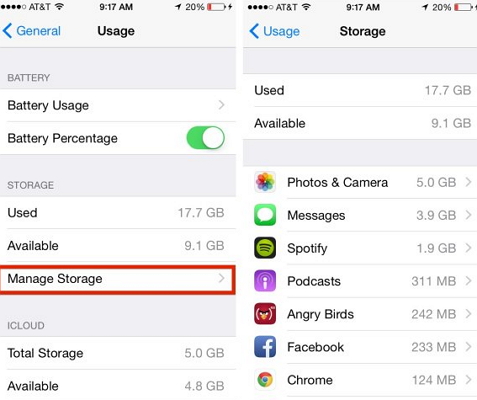
Head to ‘Settings’ and then on ‘Your name’. Now, move to ‘iCloud’ and then to ‘iCloud storage’. Now, tap on ‘Manage storage’ and see the free memory or free up more space.


Tip 3. Check Apple ID and iCloud Drive settings

It is important to check that on all your Apple devices you are signed using the same Apple ID. So, check these settings carefully.

On your phone which is running on iOS 11, head to ‘Settings’ and then to ‘Your name’. Now, tap on ‘iCloud’ and then scroll down and turn iCloud drive on.

On your windows PC, you need to open the desktop app and then move to iCloud. Now, check the iCloud settings and even your apple ID. Always check the box next to iCloud drive to turn it on.

On your Mac, you need to go to Apple menu and then move to System preferences. Now, tap on iCloud and then select iCloud drive.
Tip 4. Update Apple software more frequently

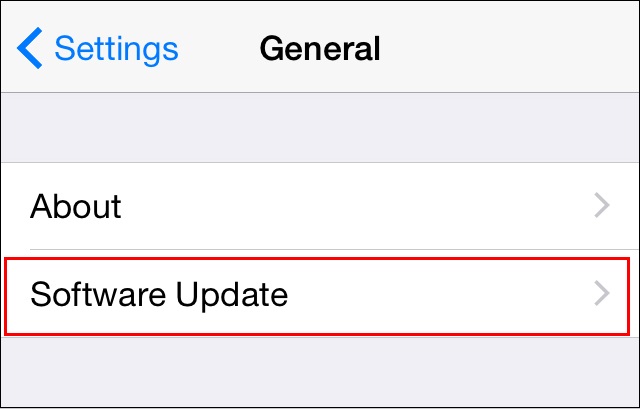
Apple rolls out new software updates from time to time. This is mainly done to fix the little bugs that may pop up from time to time. So, you need to check the ‘Settings’ to ensure that Apple software updates are checked daily and installed. Follow these steps.

Head to Apple software updates and then tap on ‘Edit’. Now select ‘Preferences’ and then change the updates from weekly to daily.


Tip 5. Use app specific password

Apple itself recommends that rather than using your Apple password for all app logins, you should have app specific password. By having a specific app password, you can use it to sync the content without any issue. Always use a two step authentication process.
Tip 6. A better backup and restore tool than iCloud

If all of the above steps still fail to have the right impact, you need to get hold of a professional tool that is known to be one of the best software which offers better backup and restore facility as compared to the iCloud.

Sponsor ads:

Gihosoft Free iPhone Data Recovery:https://www.gihosoft.com/iphone-data-recovery-free.html

Gihosoft iPhone Data Recovery Free

Free iPhone Data Recovery Software for Windows/Mac

Recover up to 12+ types of files, including contacts, SMS, photos, WhatsApp, Viber, notes, etc. jihosoft Free iPhone Data Recovery

Restore lost data from iOS devices directly or from iTunes and iCloud backup

Recover iPhone data lost due to iOS upgrade/jailbreak, accidental deletion, device lost or broken

Support all the latest iPhone, iPad and iPod Touch

Both Free and Pro version.

If you lost data after you updated to a new iPhone, you can always use Gihosoft iPhone Data Recovery to get the data back from the old iPhone or backup.You may also like: iphonerecovery.com

If you use android phones, please choose Gihosoft Android Data Recovery.

With Gihosoft Android Data Recovery, no longer afraid of data loss!

Must read:Youtube video downloader for pc

Gihosoft RePicvid Free Photo Recovery Software provides a free photo recovery software for windows to help users recover the deleted or lost photo for free.

Jihosoft Android Data Recovery: the best Android Data Recovery software for Windows and Mac to recover deleted contacts, messages, photos, videos, WhatsApp and etc from Android devices.Tips:How to transfer messages from iPhone to iPhone


lauantai 18. elokuuta 2018

Top 5 IMEI Blacklist Checker Tools/Websites

Top 5 IMEI Blacklist Checker Tools/Websites


To check if your phone’s IMEI is blacklisted, you’ll need to log on to any of the following websites and check the status of your iPhone IMEI.
#1: T-Mobile


T-Mobile in cooperation with government agencies, and other national and international carriers have joined together to help eliminate the use of stolen devices across the world. IMEI status checks with T-Mobile is very efficient and easy to accomplish. T-Mobile can also help to remove your iPhone’s IMEI from blacklist if it was wrongly reported as lost or stolen.
You may also like:online youtube downloader
#2: IMEI.info


You’re only required to take just 3 steps to check if your second-hand iPhone’s IMEI has been blacklisted on this website. Just go to the Home page, enter your iPhone IMEI, and click “Check”. The result will show you if your iPhone is blacklisted or clean.
You may also like:online youtube downloader
#3: IMEI24


If you want to check the status of your IMEI number from Great Britain, USA, Canada, Australia, Ireland, Brazil, Venezuela, Chile, and other countries, then using IMEI24 won’t be a bad idea.
#4: Orchard IMEI Checker


This online based software allows you to check if your IMEI number has been blacklisted. It’s completely free to use, and offers some other services like unlocking your locked iPhone.
#5: IMEI Changer

This free web-based tool is one of the easiest ways to check the status of your iPhone whether reported to be lost or stolen. It’s also a fast service as it takes but a few minutes to display search results. It can also help you to change your blacklisted IMEI number.

We’ve listed some of the tools and website through which you can check your iPhone’s IMEI status. But we would at this point like to mention that “all IMEI blacklist checkers websites or tools can only provide information on iPhones or smartphones that have been reported or blocked before the time of your inquiry”. Hence, if your iPhone was stolen but yet to be reported, then the result obtained from this website would not be termed accurate.

Sponsor Ads:

Jihosoft Android Data Recovery: the best Android Data Recovery software for Windows and Mac to recover deleted contacts, messages, photos, videos, WhatsApp and etc from Android devices.
For now, check:Free iTunes/iPhone Backup Extractor for iPhone, iPad
Jihosoft iTunes Backup Extractor is a powerful tool to recover and extract important data from iPhone, iPad & iPod touch backup on Windows or Mac.

sunnuntai 15. heinäkuuta 2018

How to Restore iTunes Library from iPod to New Computer (Windows or Mac ) 2019 Guide


How to Restore iTunes Library from iPod to New Computer (Windows or Mac ) 2019 Guide


Restore iTunes Library from iPod to New Computer via iTunes


There are several methods for restoring iTunes library from iPod to a new computer, but we’ve chosen to discuss iTunes method of restoring iTunes library from iPod to a new Windows computer or Mac.


Before we continue with the steps of restoring iTunes library from iPod, we would like you to note that if you’ve not authorized your new computer on iTunes, you may not be able to access your iPod media library on iTunes.


Therefore, here is how to authorize a Mac or PC before restoring your iTunes library:


Open iTunes.


Sign in with your Apple ID.


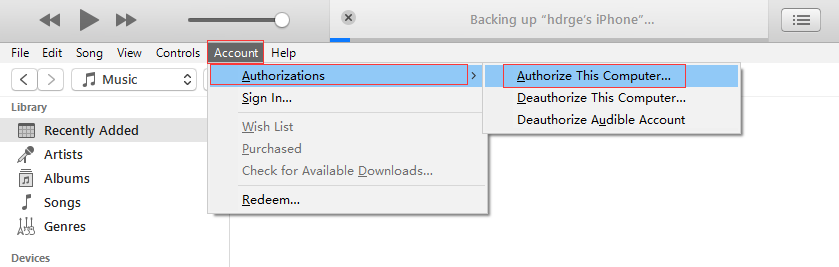
On Mac: Go to the menu bar at the top of your computer screen to choose “Account > Authorizations > Authorize This Computer".


On Windows PC: Go to the menu bar at the top of your computer screen to choose “Account > Authorizations > Authorize This Computer". If you don’t see the menu bar, press Control + B on your keyboard.
You may also like:online youtube downloader


Enter your Password and click “Authorize”.
Steps to Restore iTunes Library from iPod to New Computer with iTunes


Download and install the latest version of iTunes on your new computer.

Jihosoft Android Data Recovery: the best Android Data Recovery software for Windows and Mac to recover deleted contacts, messages, photos, videos, WhatsApp and etc from Android devices.
Launch iTunes on your PC and connect your iPod to your PC using Apple’s original lightning cable. Your connected device will appear as an icon on the upper-left corner of iTunes windows.


Click on your iPod icon, locate Summary on the left sidebar of the iTunes window. You can check the box next to the items you want to back up by clicking on them. You can also choose whether you want to back up your entire library or choose a file.


Click “Apply” to back up the selected media files.


Repeat step 4 to back up different types of media files on your iPod.


After backing up your iPod to your PC using this method, you can search for your new iTunes library location by following these steps:


Mac: Click desktop to make sure you’re in Finder. Then choose “Go > Home”, and double-click the Music folder.


Windows: Navigate to “\Users\username\My Music\iTunes”.
Disadvantages of Using iTunes to Restore iTunes Library.


This method comes with numerous disadvantages which include:


The method is complicated and full of limitations and restrictions.


You can only transfer purchased files using this process.


iTunes allows you to authorize only 5 computers or less.


Non-purchased files will not be restored using iTunes.
Gihosoft Free iPhone Data Recovery is a professional iPhone Data Recovery software to get back all your lost text message, photo, video, call history, note, contact and more from iPhone/iPad/iPod Touch.

2 Best iTunes Replacements for Windows & Mac in 2018

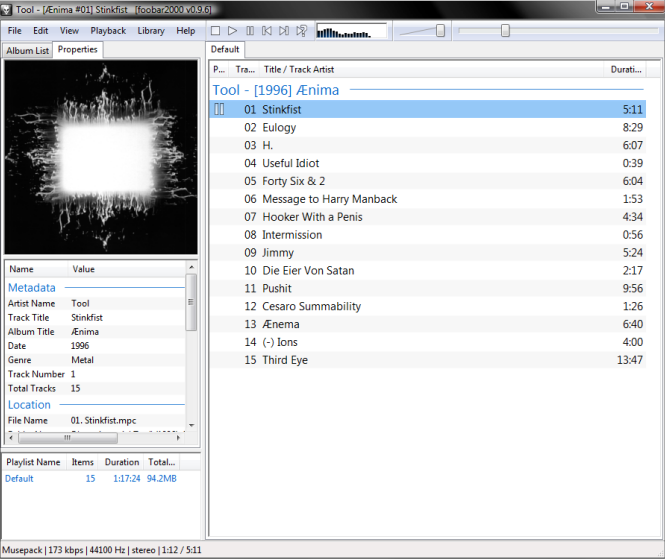
First iTunes Replacement - Foobar2000


Foobar2000 is a flexible and convenient media player that has been designed to replace iTunes for playing music. It supports a number of audio formats and can be customized according to your needs and preferences. You can set up this software quickly if you are experienced with media players and then use it in any way you see fit to manage your iDevice music library. Foobar2000 is compatible with all iOS devices.


Pros


Many audio formats are supported including MP3, SND, AU, Speex, Musepack, AIFF, WAV, WavPack, FLAC, Opus, WMA, and CD Audio. Additional plugins can be installed to add support for even more formats


Advanced tagging capabilities


Gapless playback


You can rip Audio CDs easily with this software. Furthermore, you can use the Converter component of the software to transcode all supported audio formats


A lot of options are available to customize the software


Customizable keyboard shortcuts


Adjust music volume automatically via ReplayGain feature


Features and functionality of the Foobar2000 can be extended with extensions and plug-ins


Cons


The default look of the software is dull and not very appealing

Foobar2000 has a user interface which is not easy for beginners. Setting this software up can be a challenge for inexperienced users
Second iTunes Replacement - PhoneTrans

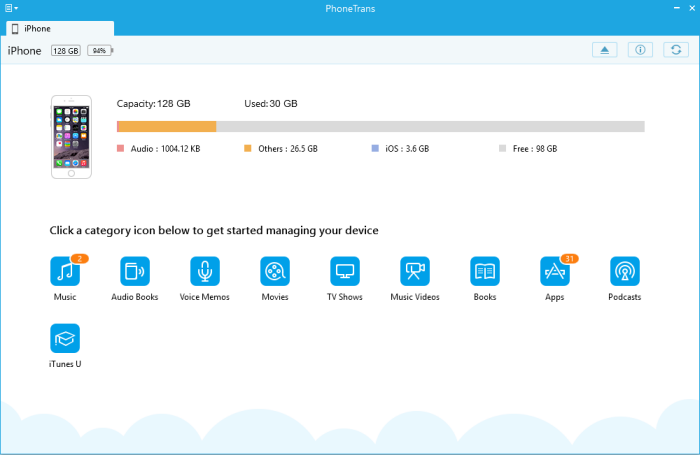
PhoneTrans is another iTunes Replacement which is free to download and install. Designed by iMobie, the main purpose of this software is to help users easily transfer media files between their iDevice and computer. PhoneTrans has a simple and straightforward user interface. Although this software does not replicate all iTunes’ features, it is still a good alternative when it comes to managing iDevice files.


When it comes to transferring music, books, videos, TV shows, and even games and apps, PhoneTrans gives you full control. You can use this software to back up your iPhone’s data, documents, and apps without jailbreaking the device. Furthermore, it also allows you to transfer backup data to another iDevice. While full iDevice backup is not allowed, this software is very good when it comes to backing up iTunes library and data of certain apps.

Pros


Two-way transfer, allowing you to transfer files between your iDevice and computer


Supports drag and drop method to transfer files


Quickly import/export music to and from iDevice


No need to sync via iTunes when you are managing iPhone files via PhoneTrans


Transfer all your iPhone music to computer via a single click


Better search experience thanks to Smart Filter


All iPhone, iPod, and iPad models are supported


Free of Cost
Cons

You cannot play music files on PhoneTrans.


The software crashes sometimes when transferring files.
Other unknown bugs may occur when transferring data between iDevice and computer If you accidentally deleted or lost videos on iPhone, first please check on the Recently Deleted folder. Alternatively, you can use the professional tool Gihosoft iPhone Recovery to recover deleted iPhone videos from Camera Roll or some apps.


Snapchat nukes Luminous and SnapColor tweaks


SNAPCHAT BLOCKS JAILBREAK TWEAKS ONCE AGAIN

Dark mode customization tweaks Luminous and SnapColor are no longer functional on Snapchat v10.36.0.23. Moreover, users are also experiencing temporary bans left, right, and center.

For those who don’t know, these tweaks were the jailbreak community’s last stand against Snapchat’s overwhelmingly strict detection methods.

With these tweaks gone, there isn’t a single package that can bypass its jailbreak detection.

Chloe, the developer of Luminous and SnapColor, confirmed the development on her Twitter handle.


The developer, however, has deactivated her account and was not available for comment as to whether these tweaks will be updated in the future.

This is not the first time Snap has had issues with the jailbreak and modding community.

They previously blocked users with third-party apps from logging in. The instant messaging app also deployed a brutal DRM system a while back that rendered all tweaks and sideloaded apps kaput.
HOW CAN YOU KEEP YOUR ACCOUNT SAFE?

To keep your account safe and secure, delete the aforementioned packages from Cydia.

Once you delete them, you can log into your account and start using the app like you’re supposed to minus the dark mode or a custom theme.

Also, don’t forget to uninstall any other tweak that injects third-party code into the Snapchat app.
WHICH TWEAKS ARE WORKING RIGHT NOW?

Now that Snapchat has nuked the last few functional tweaks, we decided to take Spectre for a test drive. It is apparently the only tweak that works right now, at least according to developer CokePokes.

Despite the developer’s contention that Spectre works with Snap’s latest version, we were greeted by the following message – not once but twice.


Even after reinstalling the package from Cydia as recommended by the developer, Snapchat kept throwing the same error message again and again.

Suffice to say, nothing is working right now with the latest version of the messaging app.

Which tweak or mod are you using right now? Drop your comments below.

Gihosoft Free iPhone Data Recovery is a professional iPhone Data Recovery software to get back all your lost text message, photo, video, call history, note, contact and more from iPhone/iPad/iPod Touch. It offers a full solution to recover your lost data in different tough situations. Besides recovering data directly from iPhone, iPad and iPod touch, it also allows you to recover data from iCloud and iTunes backup files.


Add Music to iTunes from iPhone/PC 2018 Guide


How to Add Music to iTunes via iTunes

1 Add Music from iPhone to iTunes

To add music from iPhone to iTunes easily, follow the steps below:
  • Install iTunes and click on the software to launch
  • On the Account menu, click on "Authorization" and then choose "Authorize this Computer" to grant the computer the permission to access and use your Apple ID.
  • Now login using your Details (Apple ID and password).
  • Select Authorize to finalize the authorization process.
  • Using a USB cable, plug in your iPhone to your computer.
  • Tap "File Menu >> Devices", then select Transfer Purchases from iPhone to complete the process.
select “authorize-computer”

2 Add Music Files Or Folder from PC to iTunes

  • Launch iTunes software
  • Hit "Edit > Preference > Advanced". Check to make sure that it is set to "Copy files to the iTunes Media folder when adding to library".
  • Tap OK
  • From the File menu click on "Add File to Library". For Mac users select "Add to library".
  • From your music library, browse and select your desired music files to add to your iTunes library
  • Once that is done, iTunes will immediately start copying your selected files to your iTunes music folder.

Limits/Disadvantages About iTunes

1. iTunes doesn’t detect duplicates, instead it transfers all files. This consumes too much space
2. Supports only 5 devices and limited to only one Apple ID
3. iTunes only transfers music purchased from iTunes
Bonus Tips:
11 BEST IPHONE X SECRET TIPS AND TRICKS EVERYONE SHOULD KNOW 2018
1. Open the App Switcher like a pro:
  1. Swipe up from the bottom to the middle of your screen and hold until you see the App Switcher.
  2. Swipe left or right to find the app that you want to use.
  3. Tap the app. Gihosoft Free iPhone Data Recovery is a professional iPhone Data Recovery software to get back all your lost text message, photo, video, call history, note, contact and more from iPhone/iPad/iPod Touch.
2. Bring back the home button (sort of): Go to General > Accessibility > AssistiveTouch and turn it on. You’ll now see a virtual home button that you can customize to activate shortcuts.
3. Unlock with Face ID faster: Turn off attention detection, Face ID needs a certain set of data each time it’s used, and there’s no getting around that. Face ID needs to be able to detect your eyes, nose, and mouth. While it can detect your eyes even when they’re closed (if attention is off), you’ll need to have your nose and mouth uncovered if you plan on unlocking your iPhone X with your face.
4. Show battery percentage: To show the battery percentage in the status bar, go to Settings > Battery and turn on Battery Percentage. Swipe down from the top-right corner of the iPhone X’s display to open Control Center, and check, the battery percentage is included.

5. How to disable Face ID in an instant: If you don’t want Face ID to require that you look with your eyes open at iPhone X, you can open Settings > General > Accessibility, and disable Require Attention for Face ID. This is automatically disabled if you enable VoiceOver during initial set up.
6. Flip quickly between apps
7. Save up to 60% battery life:  Check which wallpaper you using, Which apps running back and consuming energy.
8. Make Control Center easier to reach: Go to Settings > Accessibility > Reachability.
9. Quiet alarms with your Face: After picking it up, Face ID will look for your face, and if it see it, it’ll automatically lower the volume.
10. Animoji as stickers
11. Tap to wake: Many Android phones have had a “double-tap to wake” up the display feature for years. Now, iPhone X users have a similar feature, only it only requires a tap.
If you accidentally deleted or lost videos on iPhone, first please check on the Recently Deleted folder. Alternatively, you can use the professional tool Gihosoft iPhone Recovery to recover deleted iPhone videos from Camera Roll or some apps.

AirPods Pro vs AirPods: What’s the Difference

Apple today announced the new AirPods Pro with active noise cancellation, a new design, and more. The AirPods Pro is targeted towards prosu...